So You Want to Deploy Power BI Project files (PBIPs)?

Have you heard the news about the new Power BI Project files? Okay, maybe not news anymore since it was announced over a year ago. Just in case you hadn’t heard, Microsoft is using a new format “payload” that is human readable (it’s json) instead of a binary format like the original .PBIX. This is great news for source control, you can now easily see the differences between versions, so you know exactly what changed.

This new “payload” format essentially “unzips” the contents of the pbix and stores it in an unzipped format. This payload consists of a .pbip file and one or more folders containing all the parts and pieces you need for your report and/or semantic model.

When it was announced there was a collective cheer from Power BI source control advocates heard ’round the world. Since it’s preview release, Microsoft has also added GIT integration with Fabric workspaces. This makes it so easy to incorporate source control for all (or almost all) of your Fabric artifacts, including Power BI.

But what happens when your organization already has a mature CI/CD process in place using Azure DevOps? Do you really want to break from that pattern and have it controlled somewhere else? That’s what this post is about, using Azure DevOps CI/CD pipelines to deploy your Power BI Project files (.pbip).

I’m going to share my experience in hopes that it will save you some time if this is the route you need to take.

Prerequisites

  • Power BI premium capacity workspace or Fabric workspace – For Power BI workspaces, this can be a PPU workspace or a dedicated capacity SKU; for Fabric workspaces, this can be any workspace backed by any F SKU
  • Azure DevOps Repo – Repository for your source code and pipelines
  • Service Principal – Used by the Azure DevOps pipeline to authenticate to the Power BI service, this account will also need at least contributor permission on the workspaces you are deploying to
  • Fabric PowerShell command-lets – Rui Romano at Microsoft has created these and made them publicly available via GitHub – they serve as a wrapper for the Fabric APIs
  • PowerShell 7.0 or higher – The Fabric PowerShell Command-lets require at least PowerShell 7.0 or higher
  • Power BI Desktop March 2024 or later – You will need this to create the Power BI project files

Decisions To Make

There are some decisions that will need to be made before you get started. These decisions should be carefully thought out before you proceed.

  • Will your organization be separating semantic models from reports, which is a best practice for encouraging semantic model reuse? This becomes important when thinking about how to structure your repo.
    • I chose to separate my semantic models from reports, to encourage semantic model reuse.
  • How will your organization structure your repo? Are you creating a separate repo for Power BI artifacts? What will the folder structure look like for Power BI items in your repo? This becomes important for scalability.
    • I chose to use a folder structure that had the deploy type (semantic model or report) at the top, followed by the name of the workspace. The path for semantic models would look something like <repo root>\Datasets\<semantic model workspace name>\<your pbip file/payload>. (I purposefully chose to use the word “datasets” instead of semantic models because you are limited to the number of characters in the path to 256, so saving characters where I can.) For reports, it would look something like <repo root>\Reports\<report workspace name>\<your pbip file/payload>.
  • Does your organization have the PowerShell skills? I’m going to assume yes, since your organization already has a mature CI/CD process in place using Azure DevOps. This will be important when it comes to building payloads for deploy.
    • Most of the PowerShell you will need is around the IO file system, but you will also need to be familiar with looping and conditional statements.

Creating the Pipelines

In Azure DevOps, you have pipeline pipelines (no, that is not a type-o) and release pipelines. This has always confused me, they are both pipelines, but “pipeline pipelines” just sound weird to me. My OCD brain needs something to distinguish them, so I call pipelines “build pipelines”. For release pipelines, well, my brain accepts “release pipelines”, so all good there. But I digress.

Build Pipeline

I used the build pipeline to build my payload of files needed for deploy based on the files that have changed since the last commit. Now you may be asking, why do you need to build a payload? We know what files changed, so what more do we need? Well, that’s where the PowerShell Fabric command-lets come in. You can either deploy a single item or you can deploy multiple items. The catch is the parameter for the item(s) to deploy is a folder, not a single file.

I did a bit of poking around in the command-lets code and discovered it’s deploying the .SemanticModel and/or .Report folder(s) when it calls the Fabric API. These folders are part of the “unzipped” payload of the Power BI Project and they contain all those parts and pieces that are need for your semantic model and/or report, so you have to deploy all those files/folders. But if you made a change that only affected one file in one of those folders, it won’t show up when you look at only the files that changed since the last commit. This is why you have to build a payload of files based on the file(s) that changed. This is where those PowerShell file system command-lets come in, along with looping and conditional statements. Once you have that payload of files, you need to put them in a place where your release pipeline can pick them up and proceed with the actual deploy.

Release Pipeline

I used the release pipeline to do the actual deploy of the files in the payload created by the build pipeline. This is where those PowerShell Fabric command-lets come into play. I used PowerShell again to inspect the payload to determine what parameters to pass to the command-lets, then did the deploy. Because I though carefully about how to structure my repo, I was able to easily deploy on a per workspace basis with a little bit of PowerShell looping. This ensures a very scalable solution. It doesn’t matter if I make changes to semantic models/reports in more than one workspace, if the changes are in the same commit, they all go, regardless of workspace.

Assumptions

I did make some assumptions when I created these pipelines,

  • This process will only to be used for Development build/release
    • Why am I mentioning this? Because there’s this pesky thing called connections. In the paradigm I am using, where we separate the semantic models from the reports (to encourage semantic model reuse), in development, I am assuming the connection to the semantic model in the report will not change in a development deploy. This means that whatever the connection is in the report, it will be the connection when it goes to the Power BI service.
  • Semantic models will already exist in the Power BI service that are used by reports
    • When you separate the semantic model from the report, when you create the report, the semantic model must already exist in the Power BI service in order to create that connection in the report. This means that you will need to check in/sync your local branch with the remote branch where your semantic model creation/changes live before you can create any reports that use those semantic models.
  • When deploying to any environment other than development, you will either have to use a different release pipeline that will modify the connection or modify your release pipeline to modify connections
    • There are options for editing the connection of a report/dataset. You can use the PowerShell Fabric command-lets to do this. The catch is that you need to have a really good naming convention in place to make this happen dynamically. (This is still on my to-do list, so I’m sure there will be another blog post coming once I get it done.)

I hope you found this post useful. These are things that I wish I had known before I started, so I thought they might be useful to others. I’m working on anonymizing my code so I can make it available via GitHub. Stay tuned for details.

Steps to Have a Service Principal Take Over a Dataset in Power BI When Using Data Gateways

A little background for those new to using Power BI and Data Gateways. If the data source for your Power BI dataset lives on-prem or behind a private endpoint, you will need a Data Gateway to access the data. If you want to keep your data fresh (either using Direct Query or Import mode), but don’t want to rely on a specific user’s credentials (because we all want to go on vacation at some point), you will need to use a service principal for authentication.

The title of this post is something I have to do on a not so regular basis, so I always have to look it up because I inevitably forget a step. I decided to create a post about it, so I don’t have to look through pages of handwritten notes (yes, I still take handwritten notes!) or use my search engine of choice to jog my memory.

  1. Add Service Principal as a user of the data source(s) in Data Gateway – this can be done in the Power BI service
  2. Add Service Principal as an Administrator of the Data Gateway – this can be done in the Power BI service
  3. Make Service Principal the owner of the dataset – this must be done via PowerShell
  4. Bind the dataset to the Data Gateway data source(s) – this must be done via PowerShell

These are the high-level steps. If this is enough to get you started, you can stop reading now, but if you need more details for any step, keep reading.

Here are some prerequisites that I do not cover in this post. But I do provide some helpful links to get you started if needed.

  1. Power BI Premium workspace (currently Service Principals only work with Power BI Premium or Embedded SKUs)
  2. Have a Service Principal created and added to an Entra ID (f.k.a., Azure Active Directoy) Security Group
  3. Azure Key Vault – because we DON’T want to hard code sensitive values in our PowerShell scripts
  4. Have a Data Gateway installed and configured in your Power BI tenant
  5. The Power BI Tenant Setting, Allow service principals to user Power BI APIs, must be enabled and the security group mentioned above must be specified in the list of specific security groups
  6. The Power BI Tenant Setting, Allow service principals to use read-only admin APIs, must be enabled and the security group mentioned above must be specified in the list of specific security groups
  7. The data source(s) used for the dataset must already be added to the data gateway
  8. The following PowerShell Modules installed: MicrosoftPowerBIMgmt, Az. If you need help getting started with PowerShell, Martin Schoombee has a great post to get you started.

This might seem like a LOT of prerequisites, and it is, but this scenario is typical in large enterprise environments. Now, on to the details for each step.

In my environment I have a service principal called Power-BI-Service-Principal-Demo that has been added to the security group called Power BI Apps. The Power BI Apps security group has been added to the tenant settings specified above.

Step 1 – Add Service Principal as a user of data source(s) in Data Gateway

This step requires no PowerShell! You can do this easily via the Power BI Service. Start by opening the Manage connections and gateways link from the Settings in the Power BI service.

You will be presented with the Data (preview) window. Click on the ellipses for your data source and select Manage Users from the menu.

Search for your security group name (Power BI Apps for me) in the search box, then add it with the User permission on the right side. Click the Share button at the bottom to save your changes.

That’s it for step 1, super easy!

Step 2 – Add Service Principal as Administrator of Data Gateway

This step requires no PowerShell! This wasn’t always true, but it is now! You can do this easily via the Power BI Service. Start by opening the Manage connections and gateways link from the Settings in the Power BI service just like you did in Step 1.

You will be presented with the Data (preview) window. Click on the On-Premises data gateways tab. Click on the ellipses for your gateway and select Manage Users from the menu.

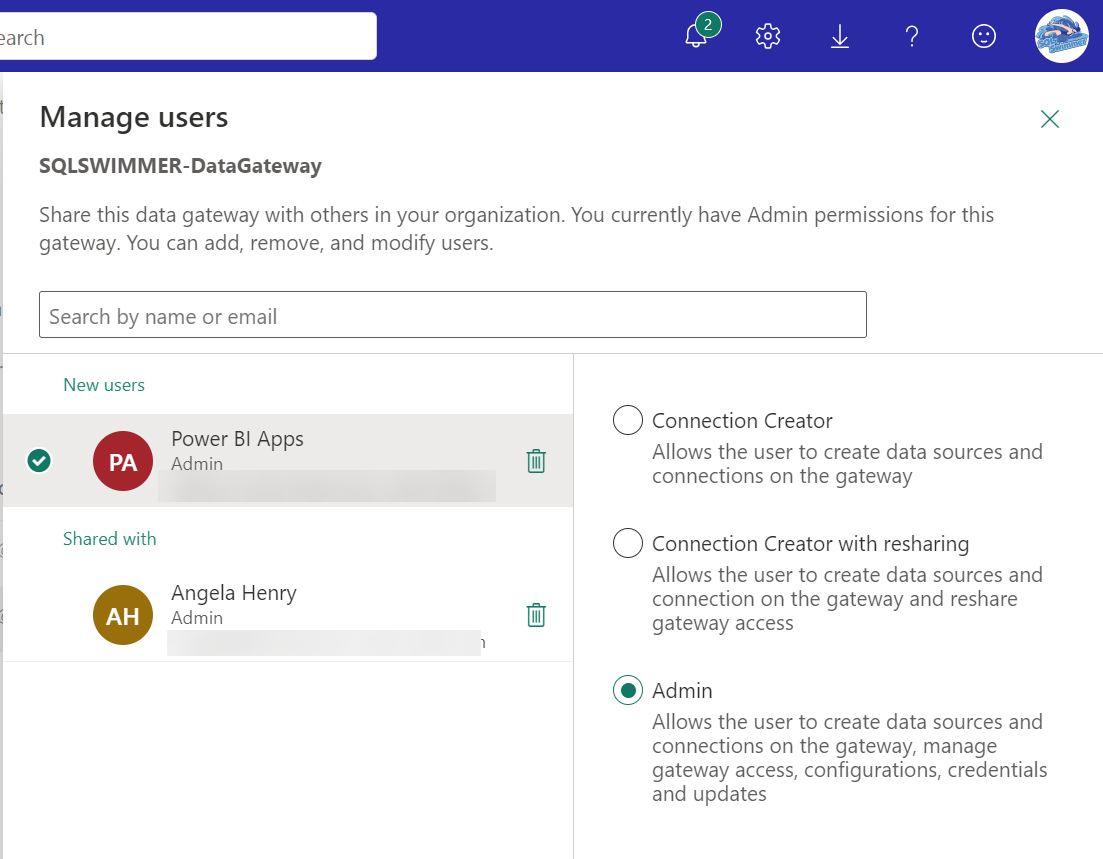
Search for your security group name in the search box, then add it with the Admin permission on the right side. Click the Share button at the bottom to save your changes.

That’s it for Step 2.

Step 3 – Make Service Principal the owner of the dataset

In order for your dataset to be independent of a specific user’s credentials, we need to have the Service Principal take over ownership of the dataset. Normally taking over as owner of a dataset is a simple thing to do in the Power BI service, however it’s not so simple for the Service Principal. The reason for this is because in order to use the Take over button in the dataset settings, you must be logged in to the Power BI service and Service Principals cannot log into the Power BI service interactively, that’s the whole point. So, we must use PowerShell to make this happen. I have created a PowerShell script to do this and I do in combination with Step 4, below.

Step 4 – Bind the dataset to the Data Gateway data source(s)

There is no interface in the Power BI service that allows users to bind datasets that are owned by Service Principals to Data Gateway data sources. So, you guessed it (or you read short list of steps above), you have to use PowerShell to do it. I have combined Steps 3 and 4 into a single PowerShell script, which you can download from my GitHub repo. My PowerShell scripts assume that you have secrets in your Key Vault for the following values.

  • Service Principal App ID
  • Service Principal Secret Value
  • Service Principal Object ID
  • Power BI Gateway Cluster ID

If you don’t have the secrets, you can always hard code your values in the scripts, though I wouldn’t recommend it. Those are sensitive values, which is why we store them in Key Vault. If you are unsure about how to get any of these values, this post should help you out for the Service Principal values and you can get your Power BI Gateway Cluster ID from the Data (preview) screen accessed by Manage connections and gateways menu option. It’s not super obvious, but you can click the little “i” in a circle for your gateway to get your Cluster ID.

In addition to these key vault values, you will also need

  • DatasetID
  • WorkspaceID
  • Name of your Key Vault
  • Your Azure tenant ID
  • Your subscription ID where your Key Vault resides

You will also need the data source ID(s) from the Data Gateway. Lucky for you I created a script that will get a list of those for you. You’re welcome. The GetGatewayDatasources.ps1 script will return a json payload, the ID of your data source is in the id node. Be sure to pick the correct entry based on the name node.

You are now ready to use the PowerShell script, TakeOverDatasetAndAssignSPtoGatewayDataSource.ps1, to finish off Steps 3 and 4. Here is a screenshot of the PowerShell code, you can download a copy of the code from my GitHub Repo. You need to provide the parameters based on the list above, modify values you use for your secret names in Key Vault, and provide your Gateway data source ID(s) and you are all set.

I couldn’t have done this without the help of these resources. I have essentially combined them in this post to make it easier for me to remember what I need to do.

I hope this was helpful.

Data Driven Subscription On A Budget, Part 2

Data Driven Subscriptions On A Budget – Part 2

Yes, this is Part 2, you can find Part 1 here to get background information.

This blog will talk about Point 3 – Distribute a report to a fluctuating list of subscribers.

Distribute a report to a (fluctuating) list of subscribers

When using email as your method of delivery for a Data Driven Subscription, best practice is to use metadata to drive that process. Usually a simple table that contains the email address of the recipient and the report name does the trick. This part of the process is no different if you don’t have Data Driven subscriptions. I usually create a table similar to this:

CREATE TABLE dbo.SSRSEmailSubscribers
(
EmailAddress varchar(128) NOT NULL
,ReportName varchar(128) NOT NULL
)

Let’s say I have a sales report that needs to go out on a daily basis and the standard format for this report is Excel. Because we don’t have data driven subscriptions, we can’t just query the table and use the resulting list to email the report. Instead we need to create a File Share subscription that generates this report and saves it to a file share. From there we can “pick up” the newly generated Excel file and email it to the recipients.

  1. Create a subscription to your Daily Sales Report in Report Manager, schedule it for a one time execution at a time just a few minutes in the future, and remember the execution time. (This creates the SQL Agent job in SQL Server.)
  2. Take a look at your SQL Agent jobs in SQL Server. If you have never seen or noticed a job created by SSRS, then you will be wondering where your job is because SSRS does not use human readable names for its jobs, it uses those pesky GUIDs as names, ugh! If your server has lots of jobs you may need to sort your jobs by Category to get all the “Report Server” jobs together. Find the job that executed at the time you scheduled (this is why you needed to remember the time!), this will be the job you will need to reference in the next step.
  3. Create a new SQL Agent job and add a step for Transact SQL script. In this new step you need to execute the SQL Agent job that you created back in step 1:

exec msdb.dbo.sp_start_job N'B514C05F-07D5-4C0B-9600-666E9980C7C3'

    where B514C05F-07D5-4C0B-9600-666E9980C7C3 is the GUID from the job that SSRS created.
  1. Next you will need to add a new job step for PowerShell. In this newly created step write your PowerShell script to get the file that was generated (as a result of executing the previous step) and retrieve your list of email addresses. Once you have this information you can send the email with the report attached. There are several ways you can do this, but I chose to use PowerShell. Since PowerShell requires a double quoted semicolon (;) delimited list of email addresses when using SMTP, I wrote my SQL query to return a double quoted semicolon (;) delimited list of the email addresses. You could have just as easily used PowerShell command-lets to format your list. Here’s my PowerShell script:

cd c:

$FilePath = "c:\temp\"
$smtpServer = "10.0.0.4"
$smtpFrom = noreply@email.com

$AddressQuery = "DECLARE @List varchar(MAX);"
$AddressQuery = $AddressQuery + "SELECT @List = COALESCE(@List + '"";""', '') + EmailAddress "

$AddressQuery = $AddressQuery + "FROM dbo.SSRSEmailSubscribers "
$AddressQuery = $AddressQuery + "WHERE ReportName = 'Daily Sales Report'; "
$AddressQuery = $AddressQuery + "SELECT '""' + @List + '""';"
Invoke-Sqlcmd -Query $AddressQuery -ServerInstance "MyServer" -Database "MyDatabase" -Variable $smtpTo

$messageSubject = "Daily Sales Report was executed"
$latest = Get-ChildItem -Path $FilePath -Filter "*.xlsx" | Sort-Object CreationTime -Descending | Select-Object -First 1

$FullFileName = $FilePath + $latest
$body = "Attached is the Daily Sales Report"
send-mailmessage -from $smtpFrom -to $smtpTo -subject $messageSubject -body $body -smtpServer $smtpServer -Attachments $FullFileName

Now schedule this newly created SQL Agent job for the time you need your Daily Sales Report to be executed and Wa-La, you now have a data driven subscription that distributes a report to a fluctuating list of email addresses.