So You Want to Deploy Power BI Project files (PBIPs)?

Have you heard the news about the new Power BI Project files? Okay, maybe not news anymore since it was announced over a year ago. Just in case you hadn’t heard, Microsoft is using a new format “payload” that is human readable (it’s json) instead of a binary format like the original .PBIX. This is great news for source control, you can now easily see the differences between versions, so you know exactly what changed.

This new “payload” format essentially “unzips” the contents of the pbix and stores it in an unzipped format. This payload consists of a .pbip file and one or more folders containing all the parts and pieces you need for your report and/or semantic model.

When it was announced there was a collective cheer from Power BI source control advocates heard ’round the world. Since it’s preview release, Microsoft has also added GIT integration with Fabric workspaces. This makes it so easy to incorporate source control for all (or almost all) of your Fabric artifacts, including Power BI.

But what happens when your organization already has a mature CI/CD process in place using Azure DevOps? Do you really want to break from that pattern and have it controlled somewhere else? That’s what this post is about, using Azure DevOps CI/CD pipelines to deploy your Power BI Project files (.pbip).

I’m going to share my experience in hopes that it will save you some time if this is the route you need to take.

Prerequisites

  • Power BI premium capacity workspace or Fabric workspace – For Power BI workspaces, this can be a PPU workspace or a dedicated capacity SKU; for Fabric workspaces, this can be any workspace backed by any F SKU
  • Azure DevOps Repo – Repository for your source code and pipelines
  • Service Principal – Used by the Azure DevOps pipeline to authenticate to the Power BI service, this account will also need at least contributor permission on the workspaces you are deploying to
  • Fabric PowerShell command-lets – Rui Romano at Microsoft has created these and made them publicly available via GitHub – they serve as a wrapper for the Fabric APIs
  • PowerShell 7.0 or higher – The Fabric PowerShell Command-lets require at least PowerShell 7.0 or higher
  • Power BI Desktop March 2024 or later – You will need this to create the Power BI project files

Decisions To Make

There are some decisions that will need to be made before you get started. These decisions should be carefully thought out before you proceed.

  • Will your organization be separating semantic models from reports, which is a best practice for encouraging semantic model reuse? This becomes important when thinking about how to structure your repo.
    • I chose to separate my semantic models from reports, to encourage semantic model reuse.
  • How will your organization structure your repo? Are you creating a separate repo for Power BI artifacts? What will the folder structure look like for Power BI items in your repo? This becomes important for scalability.
    • I chose to use a folder structure that had the deploy type (semantic model or report) at the top, followed by the name of the workspace. The path for semantic models would look something like <repo root>\Datasets\<semantic model workspace name>\<your pbip file/payload>. (I purposefully chose to use the word “datasets” instead of semantic models because you are limited to the number of characters in the path to 256, so saving characters where I can.) For reports, it would look something like <repo root>\Reports\<report workspace name>\<your pbip file/payload>.
  • Does your organization have the PowerShell skills? I’m going to assume yes, since your organization already has a mature CI/CD process in place using Azure DevOps. This will be important when it comes to building payloads for deploy.
    • Most of the PowerShell you will need is around the IO file system, but you will also need to be familiar with looping and conditional statements.

Creating the Pipelines

In Azure DevOps, you have pipeline pipelines (no, that is not a type-o) and release pipelines. This has always confused me, they are both pipelines, but “pipeline pipelines” just sound weird to me. My OCD brain needs something to distinguish them, so I call pipelines “build pipelines”. For release pipelines, well, my brain accepts “release pipelines”, so all good there. But I digress.

Build Pipeline

I used the build pipeline to build my payload of files needed for deploy based on the files that have changed since the last commit. Now you may be asking, why do you need to build a payload? We know what files changed, so what more do we need? Well, that’s where the PowerShell Fabric command-lets come in. You can either deploy a single item or you can deploy multiple items. The catch is the parameter for the item(s) to deploy is a folder, not a single file.

I did a bit of poking around in the command-lets code and discovered it’s deploying the .SemanticModel and/or .Report folder(s) when it calls the Fabric API. These folders are part of the “unzipped” payload of the Power BI Project and they contain all those parts and pieces that are need for your semantic model and/or report, so you have to deploy all those files/folders. But if you made a change that only affected one file in one of those folders, it won’t show up when you look at only the files that changed since the last commit. This is why you have to build a payload of files based on the file(s) that changed. This is where those PowerShell file system command-lets come in, along with looping and conditional statements. Once you have that payload of files, you need to put them in a place where your release pipeline can pick them up and proceed with the actual deploy.

Release Pipeline

I used the release pipeline to do the actual deploy of the files in the payload created by the build pipeline. This is where those PowerShell Fabric command-lets come into play. I used PowerShell again to inspect the payload to determine what parameters to pass to the command-lets, then did the deploy. Because I though carefully about how to structure my repo, I was able to easily deploy on a per workspace basis with a little bit of PowerShell looping. This ensures a very scalable solution. It doesn’t matter if I make changes to semantic models/reports in more than one workspace, if the changes are in the same commit, they all go, regardless of workspace.

Assumptions

I did make some assumptions when I created these pipelines,

  • This process will only to be used for Development build/release
    • Why am I mentioning this? Because there’s this pesky thing called connections. In the paradigm I am using, where we separate the semantic models from the reports (to encourage semantic model reuse), in development, I am assuming the connection to the semantic model in the report will not change in a development deploy. This means that whatever the connection is in the report, it will be the connection when it goes to the Power BI service.
  • Semantic models will already exist in the Power BI service that are used by reports
    • When you separate the semantic model from the report, when you create the report, the semantic model must already exist in the Power BI service in order to create that connection in the report. This means that you will need to check in/sync your local branch with the remote branch where your semantic model creation/changes live before you can create any reports that use those semantic models.
  • When deploying to any environment other than development, you will either have to use a different release pipeline that will modify the connection or modify your release pipeline to modify connections
    • There are options for editing the connection of a report/dataset. You can use the PowerShell Fabric command-lets to do this. The catch is that you need to have a really good naming convention in place to make this happen dynamically. (This is still on my to-do list, so I’m sure there will be another blog post coming once I get it done.)

I hope you found this post useful. These are things that I wish I had known before I started, so I thought they might be useful to others. I’m working on anonymizing my code so I can make it available via GitHub. Stay tuned for details.

Options for Data Source Credentials When A Service Principal Owns A Power BI Dataset

In today’s world of wanting to automate everything, specifically, automating your CI/CD process for your Power BI datasets and dataset refreshes, you need to understand your options when it comes to the credentials you can use for your data sources.

If we are using enterprise-wide datasets, we don’t want Power BI datasets owned by individuals; we want them to be owned by a Service Principal so they aren’t relying on specific individuals when things go sideways (and because we all want to go on vacation at some point). However, it’s not always clear on what credentials will actually be used for our data sources in our datasets when using a Service Principal. In a previous post, I talked about how to set up a service principal to take over a dataset when using data gateways, but one of the pre-requisites I listed was that your data sources needed to be configured with appropriate credentials. That’s where this post comes in.

You essentially have three options for data source credentials, depending on your data source type.

  1. Basic Authentication
  2. Active Directory/Azure Active Directory Authentication
  3. Service Principal

This post will help you understand these options and the pros/cons of each.

Basic Authentication

If you are using an on-prem data source like SQL Server or Oracle, basic authentication means you have a username and password that only exists within this data source and it’s up to the database engine to authenticate the user. In SQL Server it’s called SQL Authentication and in Oracle it’s called Local Authentication.

Pros

  1. Super easy to set up
  2. All your security is contained within the database itself
  3. Almost all applications can use basic authentication

Cons

  1. Passwords tend to get passed around like a penny in a fountain
  2. On the opposite end of the spectrum from above, the password is sometimes tribal knowledge and not recorded anywhere, so folks are afraid to change the password for fear of breaking something
  3. Maintenance can be a nightmare, it’s yet another stop on the “disable access” checklist when someone leaves a company

Active Directory/Azure Active Directory

Active directory (on-prem based) or Azure active directory (cloud based) is sometimes referred to as Windows Authentication, because this type of credential is needed to log into a machine, whether it be a laptop, desktop, server, or environment like a network, and it exists outside of the database.

Pros

  1. Usually a bit more secure, since accounts are usually associated with an actual person, so passwords aren’t passed around
  2. Usually requires interactivity (see next Pro)
  3. A “Service Account” can be created that is not associated with an actual person
  4. Can be added to Active directory/Azure active directory security groups

Cons

  1. Usually requires interactivity
  2. Not supported by all applications, but it is supported in Power BI

Service Principal

This is by far the most secure authentication method. Service Principals are created as “app registrations” in Azure Active Directory, and by nature they are not interactive.

Pros

  1. Most secure out of all methods listed
  2. Require “tokens” to access applications
  3. Allow you to go on vacation

Cons

  1. Can be difficult to setup/configure
  2. In most applications, Power BI included, the tokens have a very small window when they are valid (like, just an hour), which is excellent from a security perspective, but bad from an automation perspective

Summary

Which would I use? Well, it depends. What are my client’s security requirements? Is Basic Authentication even an option? Some organizations have this disabled for their on-prem systems. If I go with Active Directory/Azure Active Directory, I would most likely use a “service account”, (where the password is stored in Key Vault) then I would use a PowerShell script to assign the credentials to the data source. Lastly there’s the Service Principal. My use of this would depend on how/when I am refreshing the dataset. If it’s at the end of an ETL/ELT process that can call PowerShell scripts and I know the dataset refresh time is less than an hour, then I would definitely use this authentication method with an additional call to get a fresh token just prior to issuing a dataset refresh. It can be difficult to choose which authentication method is best for you, but hopefully this post has helped at least a little bit.

Steps to Have a Service Principal Take Over a Dataset in Power BI When Using Data Gateways

A little background for those new to using Power BI and Data Gateways. If the data source for your Power BI dataset lives on-prem or behind a private endpoint, you will need a Data Gateway to access the data. If you want to keep your data fresh (either using Direct Query or Import mode), but don’t want to rely on a specific user’s credentials (because we all want to go on vacation at some point), you will need to use a service principal for authentication.

The title of this post is something I have to do on a not so regular basis, so I always have to look it up because I inevitably forget a step. I decided to create a post about it, so I don’t have to look through pages of handwritten notes (yes, I still take handwritten notes!) or use my search engine of choice to jog my memory.

  1. Add Service Principal as a user of the data source(s) in Data Gateway – this can be done in the Power BI service
  2. Add Service Principal as an Administrator of the Data Gateway – this can be done in the Power BI service
  3. Make Service Principal the owner of the dataset – this must be done via PowerShell
  4. Bind the dataset to the Data Gateway data source(s) – this must be done via PowerShell

These are the high-level steps. If this is enough to get you started, you can stop reading now, but if you need more details for any step, keep reading.

Here are some prerequisites that I do not cover in this post. But I do provide some helpful links to get you started if needed.

  1. Power BI Premium workspace (currently Service Principals only work with Power BI Premium or Embedded SKUs)
  2. Have a Service Principal created and added to an Entra ID (f.k.a., Azure Active Directoy) Security Group
  3. Azure Key Vault – because we DON’T want to hard code sensitive values in our PowerShell scripts
  4. Have a Data Gateway installed and configured in your Power BI tenant
  5. The Power BI Tenant Setting, Allow service principals to user Power BI APIs, must be enabled and the security group mentioned above must be specified in the list of specific security groups
  6. The Power BI Tenant Setting, Allow service principals to use read-only admin APIs, must be enabled and the security group mentioned above must be specified in the list of specific security groups
  7. The data source(s) used for the dataset must already be added to the data gateway
  8. The following PowerShell Modules installed: MicrosoftPowerBIMgmt, Az. If you need help getting started with PowerShell, Martin Schoombee has a great post to get you started.

This might seem like a LOT of prerequisites, and it is, but this scenario is typical in large enterprise environments. Now, on to the details for each step.

In my environment I have a service principal called Power-BI-Service-Principal-Demo that has been added to the security group called Power BI Apps. The Power BI Apps security group has been added to the tenant settings specified above.

Step 1 – Add Service Principal as a user of data source(s) in Data Gateway

This step requires no PowerShell! You can do this easily via the Power BI Service. Start by opening the Manage connections and gateways link from the Settings in the Power BI service.

You will be presented with the Data (preview) window. Click on the ellipses for your data source and select Manage Users from the menu.

Search for your security group name (Power BI Apps for me) in the search box, then add it with the User permission on the right side. Click the Share button at the bottom to save your changes.

That’s it for step 1, super easy!

Step 2 – Add Service Principal as Administrator of Data Gateway

This step requires no PowerShell! This wasn’t always true, but it is now! You can do this easily via the Power BI Service. Start by opening the Manage connections and gateways link from the Settings in the Power BI service just like you did in Step 1.

You will be presented with the Data (preview) window. Click on the On-Premises data gateways tab. Click on the ellipses for your gateway and select Manage Users from the menu.

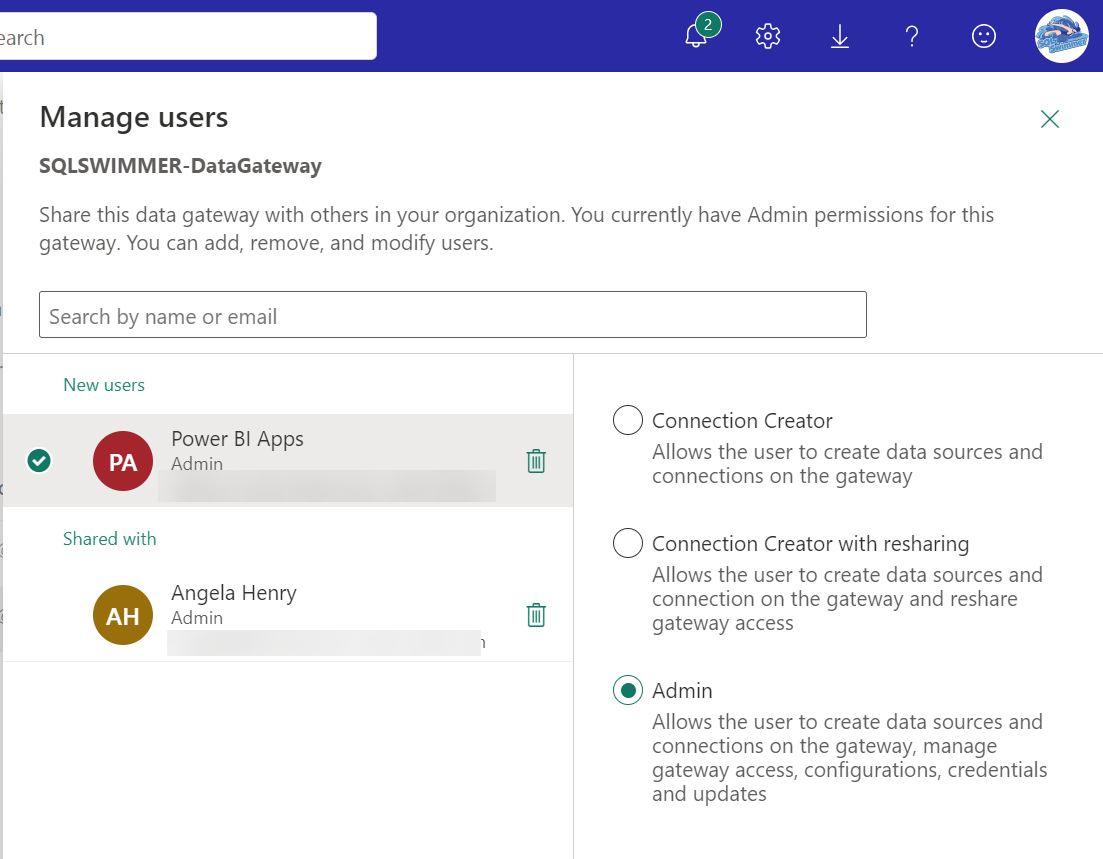
Search for your security group name in the search box, then add it with the Admin permission on the right side. Click the Share button at the bottom to save your changes.

That’s it for Step 2.

Step 3 – Make Service Principal the owner of the dataset

In order for your dataset to be independent of a specific user’s credentials, we need to have the Service Principal take over ownership of the dataset. Normally taking over as owner of a dataset is a simple thing to do in the Power BI service, however it’s not so simple for the Service Principal. The reason for this is because in order to use the Take over button in the dataset settings, you must be logged in to the Power BI service and Service Principals cannot log into the Power BI service interactively, that’s the whole point. So, we must use PowerShell to make this happen. I have created a PowerShell script to do this and I do in combination with Step 4, below.

Step 4 – Bind the dataset to the Data Gateway data source(s)

There is no interface in the Power BI service that allows users to bind datasets that are owned by Service Principals to Data Gateway data sources. So, you guessed it (or you read short list of steps above), you have to use PowerShell to do it. I have combined Steps 3 and 4 into a single PowerShell script, which you can download from my GitHub repo. My PowerShell scripts assume that you have secrets in your Key Vault for the following values.

  • Service Principal App ID
  • Service Principal Secret Value
  • Service Principal Object ID
  • Power BI Gateway Cluster ID

If you don’t have the secrets, you can always hard code your values in the scripts, though I wouldn’t recommend it. Those are sensitive values, which is why we store them in Key Vault. If you are unsure about how to get any of these values, this post should help you out for the Service Principal values and you can get your Power BI Gateway Cluster ID from the Data (preview) screen accessed by Manage connections and gateways menu option. It’s not super obvious, but you can click the little “i” in a circle for your gateway to get your Cluster ID.

In addition to these key vault values, you will also need

  • DatasetID
  • WorkspaceID
  • Name of your Key Vault
  • Your Azure tenant ID
  • Your subscription ID where your Key Vault resides

You will also need the data source ID(s) from the Data Gateway. Lucky for you I created a script that will get a list of those for you. You’re welcome. The GetGatewayDatasources.ps1 script will return a json payload, the ID of your data source is in the id node. Be sure to pick the correct entry based on the name node.

You are now ready to use the PowerShell script, TakeOverDatasetAndAssignSPtoGatewayDataSource.ps1, to finish off Steps 3 and 4. Here is a screenshot of the PowerShell code, you can download a copy of the code from my GitHub Repo. You need to provide the parameters based on the list above, modify values you use for your secret names in Key Vault, and provide your Gateway data source ID(s) and you are all set.

I couldn’t have done this without the help of these resources. I have essentially combined them in this post to make it easier for me to remember what I need to do.

I hope this was helpful.

Power BI Learning Opportunity at SQLBits

If you’ve been thinking about learning Power BI, I have a wonderful opportunity for you. I will be presenting, along with my friend and colleague Michael Johnson (Blog | Twitter), a full day of training at SQLBits on 8-March-2022. Our Training Day session is called Zero to Dashboard.

Our session assumes you have no knowledge of Power BI, so if this is your first encounter with Power BI, no worries, we’ve got you covered. We will cover the Power BI ecosystem, talk about the importance of data cleansing and data modeling, introduce visualization best practices, and review governance considerations. We reinforce all these concepts through hands on labs that we go through as a group. By the end of the day, you will be able to create a dashboard. If you are one of those folks who need to do things multiple times before they “stick” (like me), you will walk away with the lab manual used in class so you can go through the labs again to help solidify what you have learned.

SQLBits is a hybrid event this year, so if you cannot attend in person, no worries, you can attend virtually as well. If you are interested in attending, there are still registration slots available, but seats are limited, so don’t wait to long to register.

Michael and I hope to see you there.

Unable to Validate Source Query in Tabular Editor

I recently encountered the error, “Unable to validate source query” when trying to refresh the metadata for the tables in my tabular model using Tabular Editor. I immediately googled that at came up with a great post by Koen Verbeeck (Blog | Twitter). I had never seen this error before and since my metadata refreshes had been working flawlessly for weeks, I was so excited when I found this post.

Long story short, this post did not help me. I tried everything suggested, I ran my partition queries wrapped in SET FMTONLY ON and they came back instantaneously in SSMS. I added the TabularEditor_AddFalseWhereClause annotation from this thread. Neither worked. So wasn’t quite sure what was going on.

My last-ditch effort was to add a new table to my model to see if I was even getting a successful connection to my data source. I was prompted for the password, which it had not done before when adding new tables or refreshing table metadata (for weeks). I was using a legacy data source (Azure SQL Database) w/ SQL Server Authentication. Once I supplied the password, I could see a list of available objects in my database. I cancelled out of the new tables dialog and clicked Refresh Table Metadata and winner-winner chicken dinner, no more “Unable to validate source query” error. Turns out my password “mysteriously disappeared” from my connection string.

The moral of the story is: It’s not always zebras when you hear hoofbeats, sometimes it is horses.

Hopefully, this post will help someone else waste significantly less time than I did on fixing this error.

I’m Speaking at #DataPlatformDiscoveryDay

We are living in some very interesting times and the technical conference community is facing some challenges like it never has before.  So many in-person events have been postponed or cancelled.  For those who are speakers, like myself, this have been very challenging.  I have worked from home for over eight years, so the new “norm” is just the same old same old for me.   But I used my speaking engagements as a way to connect with others in the tech community on a fairly regular basis.  Now that this has been put on hold for who knows how long, I’m having a tough time staying connected.

I am very fortunate that I work in an area that is still very much in high demand and still employed, unlike many others who have been furloughed or laid off.  With so many people unemployed now more than ever in the world, many of those folks are contemplating a career change.  Thankfully, I have a fellow Data Platform MVP in the US who has partnered with a colleague in Europe to bring a new kind of tech conference to those who are looking to break into the data platform arena.  Oh, and it’s virtual – and it’s free! So you don’t have to leave your home and if you are on a tight budget, you don’t have to spend a thing.

I am so honored to have been selected to speak at this first of it’s kind, beginner-virtual-free conference, Data Platform Discovery Day.  I will be presenting my What is Power BI session, so if you’ve ever wondered about Power BI and have some free time on your hands, then come join me on Wednesday, April 29, 2020.  There are lots of great introductory sessions out there, here’s the US sessions list and the European sessions list.  There’s still time to register for the US Sessions or register for the UK sessions.

I hope you are all doing well and staying home and staying safe.

I’m Speaking at #SQLSatSpokane

I am super excited to announce that I have been selected to speak at SQL Saturday Spokane on March 21, 2020.  Not only have I been selected to speak, but I’ve been selected to give a pre-con on Friday, March 20, 2020 as well.

I will be delivering my Power BI Zero to Dashboard pre-con.  This is a full day introductory session to Power BI that focuses on: introducing the Power BI eco-system, what it can and cannot do for you; the importance of data cleansing and modeling;  and data visualization best practices.  My target audience is those that have little to no experience with Power BI, but want to learn more.  If this sounds like something you could benefit from you can Register Here.

I will also be delivering my What is Power BI? session on Saturday, March 21, 2020.

If you’re in the Spokane area on Saturday, March 21, 2020, stop by and say, “Hello”.  I’d love to see you and chat.  There are still registration slots open, so register now.

Updated Data Profiling in Power BI Desktop

In this month’s (October 2019) release of Power BI Desktop, they have added a ton of cool stuff, you can read all about it via the Power BI Blog.  But what I’m most excited about is the love that was given to the Data Profiling feature.

The Data Profiling feature was first added to public preview just under a year ago in November 2018.  Then it went GA in May 2019 and just 5 months later, they’ve added more goodness.  That’s one of the great things about Power BI, the release cadence.  If you don’t like something or want more features, just wait a few months (or five in this case).

One of the big things that was lacking with the Data Profiling feature was the text length statistics.  This is a huge deal for me.  It’s one of the things that I’ve encounter most frequently, incorrectly sized string columns in data warehouses.  Well, the wait is over, text lengths are now available.  Unfortunately, it’s not intuitive on how to get them.

First, you will need to make sure that you have the Column profile check box checked in the View ribbon in the Power Query Editor window.

Now select a column of data type text so the Value distribution pane (at the bottom of the screen) shows the values of the column.  Then click on the little tiny ellipses (…) in the upper right hand corner of the Value Distribution pane.  Select Group By then Text length from the pop up menu.

Now you should have a nice histogram of your text length values.

This is much better than nothing, but I wish they would have included the Min and Max lengths in the Column statistics pane with all the other summary statistics because it has a nice little Copy menu (via the ellipses in the upper right hand corner) so you can easily send the data to someone in an email if needed.  They even formatted the output in a table!

Contents of Column Statistics Copy
Contents of Column Stats when pasted into Word

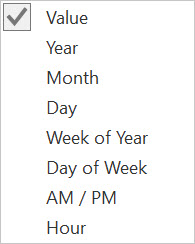
The Group by functionality isn’t just for text data types though.  You can use it for all data types.  I really like the groupings available for Date and Datetime data types, these will be super helpful.

Available Date groupings

Available Datetime groupings

Honestly I’m not trying to look a gift horse in the mouth, but we still need more when it comes to text lengths.  So I’ll just wait a few months and see what comes next.


Using Power BI To Track My Activities

As a MS MVP one of the things you have to do is keep track of all the “things” you do for community, whether it be volunteering, organizing, speaking, etc.  It can be a bit daunting trying to keep track of all of it.  But hey, I’m a Data Platform MVP, how hard can it be to keep track of data?!  Queue music from one of my favorite Blake Edwards movie .. Pink Panther.

At first I was just keeping track of everything in a text file via Notepad.  That got very unmanageable very quickly with all the different kinds of things I was doing.  I migrated all my data to a spreadsheet, because we all know that Excel is the most popular database in the world, right?

I knew that I had been busy in 2018, but I had no idea until I used Power BI to look at my data.  Yes, I was significantly busier in 2018 than I ever had been and 2019 is shaping up to be just the same if not busier.

Take a look at what I created.  It was a fun project to work on and allowed me to explore some things in Power BI that I don’t work with on a regular basis.  Let me know what you think.

Speaking at SQL Saturday Victoria

I am so excited to announce that I have been selected to speak at SQL Saturday Victoria on Saturday, March 16, 2019. I will be presenting my What is Power BI session.

This is another kind of homecoming for me.  When I was a kid, my sister & I lived with my grandparents for a while down in the Willamette Valley and we used to go to Victoria every summer.  I have very fond memories of Butchart Gardens and walking around The Land of the Little People.  I was super bummed when I found out that the latter no longer existed.  But if you have time, I would highly recommend Butchart Gardens and yes, they are open in Winter.

If you’re in the area, stop by and say, “hello”.  I’d love to see you and chat a while.